

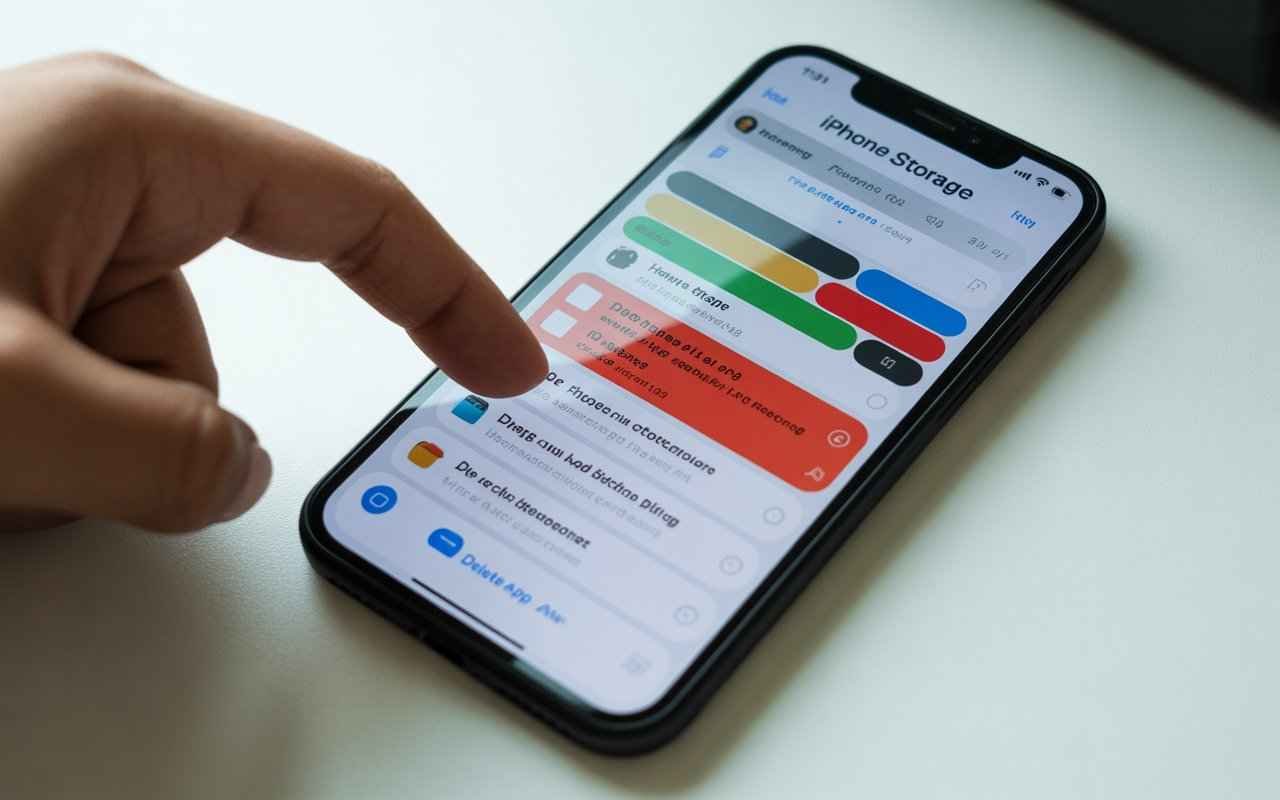
Running out of space on your iPhone can feel frustrating, especially when important apps stop working and photos refuse to save. Over time, hidden files, unused apps, cached data, and large media collections silently consume valuable storage. That’s why clearing storage on iPhone has become essential for smoother performance and better daily use.
Many users struggle with how to free up storage on their iPhones without deleting important data. Others search for smart ways to manage space efficiently. In this guide, you’ll learn simple and proven methods for how to clear iPhone storage, boost speed, and prevent storage warnings. By applying these steps, you can enjoy a faster phone, smoother apps, and a stress-free digital life.
What Does Clearing Storage on iPhone Mean and Why It Matters?
Clearing storage on your iPhone means removing the digital clutter that builds up over time. This clutter includes unused apps, cached files, duplicate photos, forgotten downloads, hidden system junk, and outdated backups. Many users wonder what happens when iPhone storage is full, and the answer is simple. Performance drops, battery drains faster, and apps begin crashing. Clearing storage restores smooth speed and stable performance.
People often ask why iPhone storage is full even though I have iCloud, and the answer is that iCloud does not fully replace local storage. Many apps still store files locally. Messages, downloads, system data, and cache stay on the device. By learning how to clear iPhone storage, you regain control. This not only boosts speed but also protects your data and prevents system errors.
How to Check iPhone Storage Usage and Find What’s Taking Space
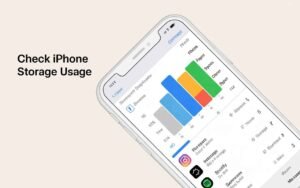
Before freeing up space on your iPhone, you must understand where your storage goes. Apple provides a built-in tool that shows exactly how space is used. Open Settings, tap General, and then tap iPhone Storage. You will see a colorful bar graph that breaks down your storage into apps, photos, media, messages, system data, and more.
This breakdown helps you decide how to make room in your iPhone intelligently. Instead of deleting random files, you can target the biggest storage hogs. Many people discover that social media, streaming, and messaging apps consume more space than they realize. Once you identify these culprits, cleaning my iPhone storage becomes much easier.
| Storage Category | Typical Usage | Cleanup Impact |
|---|---|---|
| Photos & Videos | 35%–55% | Very High |
| Social Media Apps | 10%–25% | High |
| System Data | 5%–15% | Medium |
| Messages | 3%–10% | Medium |
| Safari & App Cache | 2%–8% | High |
How to Free Up Storage on iPhone Without Deleting Important Data
Many users search for ways to free up storage on their iPhones without deleting anything because they fear losing memories or files. Thankfully, iOS offers multiple smart tools that compress, optimize, and safely offload content. Using iCloud optimization lets you keep full-quality files in the cloud while storing lightweight previews locally.
This method lets you free up space on your iPhone without deleting important photos, contacts, or documents. Offloading unused apps keeps app data intact while freeing up significant storage space. Clearing cached browser files and background app junk also helps to create space on the iPhone safely.
| Smart Optimization Tool | Storage Saved | Data Risk |
|---|---|---|
| iCloud Photo Optimization | 3GB–20GB | None |
| App Offloading | 2GB–10GB | None |
| Safari Cache Cleaning | 300MB–1GB | None |
| Background Data Reset | 200MB–800MB | None |
Best Ways to Clear iPhone Storage and Remove Hidden Junk Files
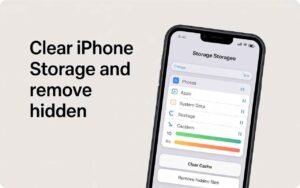
Hidden junk files slowly accumulate in background processes, app logs, and system cache. These files remain invisible to users but steadily fill storage. Learning how to clear iPhone storage cache becomes essential for long-term performance. Restarting your device regularly flushes temporary system memory and clears short-term junk.
Power users often reinstall heavy apps to completely remove deep-level junk. This process ensures that I can clear storage on my iPhone without risking personal data. Clearing Safari history, website data, and background sync logs also contributes significantly to cleaning up iPhone storage for free.
How to Clear Space on iPhone by Managing Photos, Videos, and Media
Photos and videos consume the largest portion of iPhone storage. High-resolution images, Live Photos, and 4K videos quickly fill available space. Learning how to clear space on iphone starts with smart media management. Enabling iCloud photo optimization automatically compresses local files while keeping originals safe online.
Duplicate photos, burst images, and forgotten screenshots silently waste space. Removing these allows us to free up space on iPhone without losing meaningful memories. Streaming apps also download offline videos that often remain unnoticed, adding hidden bulk.
| Media Type | Average Size | Cleanup Priority |
|---|---|---|
| 4K Video | 400MB per minute | Very High |
| Live Photos | 4MB–7MB each | High |
| Screenshots | 1MB–3MB each | Medium |
| Offline Videos | 500MB–5GB | Very High |
How to Free Up Space on iPhone by Removing System Data and Cache
System data grows quietly through updates, logs, and background operations. Many users panic when system storage becomes massive. Clearing system junk through controlled resets effectively frees up storage on the iPhone. Restarting, updating iOS, and resetting background sync clears unnecessary system clutter.
Reinstalling bloated apps refreshes the cache and deletes temporary junk. This technique improves iPhone storage cleanup while stabilizing app performance. Safari cache clearing also reduces system-level data consumption.
How to Make Room in iPhone Using Smart iOS Storage Settings
Apple includes intelligent tools that automate storage management. These settings help free up space on the iPhone without manual effort. Enabling automatic app offloading removes unused apps while preserving data. Message retention limits automatically delete old media files after a defined period.
Streaming optimization settings help apps avoid unnecessarily saving offline data. Together, these features make creating space on an iPhone effortless while protecting important files.
| iOS Feature | Function | Storage Benefit |
|---|---|---|
| Offload Unused Apps | Removes inactive apps | High |
| Optimize Photos | Cloud compression | Very High |
| Auto Delete Messages | Clears old attachments | Medium |
| Streaming Optimization | Prevents offline hoarding | High |
How to Create Space on iPhone by Cleaning Apps and App Data
Apps silently store enormous amounts of data through downloads, logs, cache, and background content. Social media platforms, streaming services, and browsers are the biggest contributors. Understanding how to clear applications on iPhone storage helps regain large amounts of space quickly.
Clearing in-app downloads, resetting cache, and reinstalling bloated apps improves performance and battery life. This technique plays a vital role in freeing up storage on an iPhone without deleting personal data.
Advanced Ways to Free Up Storage on iPhone for Better Performance

Advanced users go further by cleaning email attachments, clearing large backups, managing voice memos, and reducing the size of offline maps. These hidden storage drains often remain unnoticed for months. Applying these strategies drastically improves my ability to clear my iPhone storage effectively.
Resetting network settings and clearing background sync logs also reduces hidden system clutter. These advanced tactics provide noticeable performance gains while maintaining data security.
Common Mistakes to Avoid When Clearing Storage on iPhone
Many users accidentally delete valuable files or install risky third-party cleaner apps. These mistakes often cause data loss and privacy risks. Avoid removing system files manually or trusting unknown apps promising magical results.
Over-cleaning can also cause system instability. Smart storage cleaning balances performance and safety. Following proven methods ensures I can clean my iPhone storage without damaging it.
Final Tips to Keep Your iPhone Storage Clean and Optimized
Regular maintenance prevents major storage crises. Weekly cache cleaning, monthly photo reviews, and cloud syncing keep storage balanced. Smart habits make freeing up space on an iPhone effortless over time.
Consistency protects performance. Clean devices feel faster, last longer, and deliver smoother daily experiences. Storage hygiene directly improves your overall smartphone life.
Conclusion: Best Long-Term Ways to Maintain Free Storage on iPhone
Clearing storage on iPhone is not a one-time task. It is a habit that protects performance, battery life, and usability. By learning how to free up storage on iPhone, managing media wisely, and using built-in iOS tools, you gain complete control.
In 2026, digital clutter grows faster than ever. Applying these techniques ensures your iPhone stays fast, responsive, and stress-free. Clean storage creates smooth performance, longer lifespan, and a better daily experience.
FAQ’s
How do I free up storage space on my iPhone?
You can free up storage by deleting unused apps, clearing caches, and optimizing photos with iCloud. Offloading large files and media also helps save space quickly.
How do I free up app storage on my iPhone?
Go to Settings → iPhone Storage, select apps, and delete or offload them. Clearing app cache and downloads also frees significant space.
What takes up most of your iPhone storage?
Photos, videos, and apps usually take the largest portion of iPhone storage. System data and cached files also add up over time.
How to clear your storage without deleting anything?
Use iCloud to optimize photos, offload unused apps, and clear temporary cache. This creates space while keeping your important data safe.
